Creating a login password helps protect your DREO account and allows you to access the DREO website and Support services using your account email and password. If you signed up with a third-party account or haven’t set a password yet, follow the steps below.
Steps
1. Open the DREO App and sign in to your account.
2. Tap the Profile tab at the bottom.
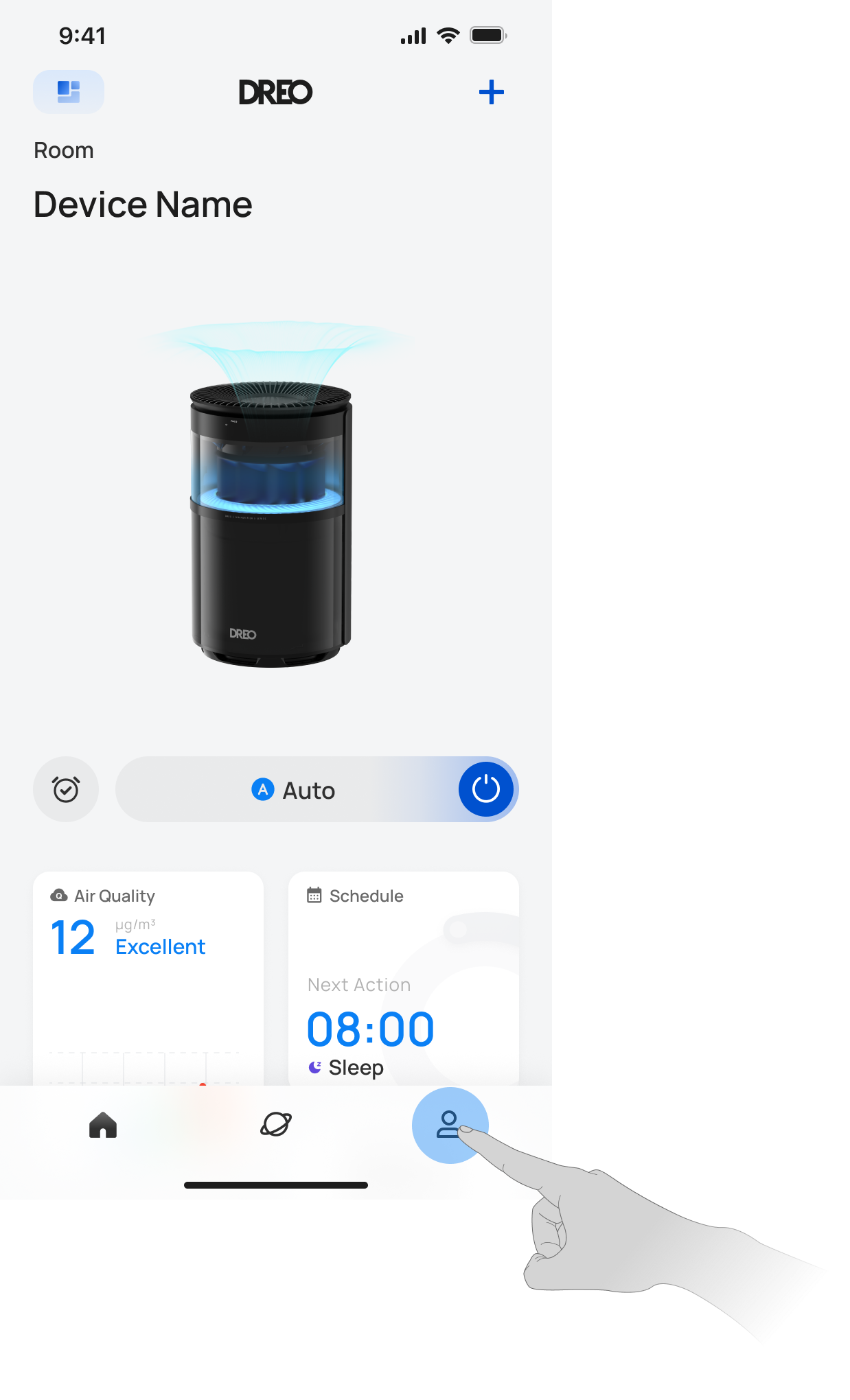
3. Tap your profile information at the top of the page.
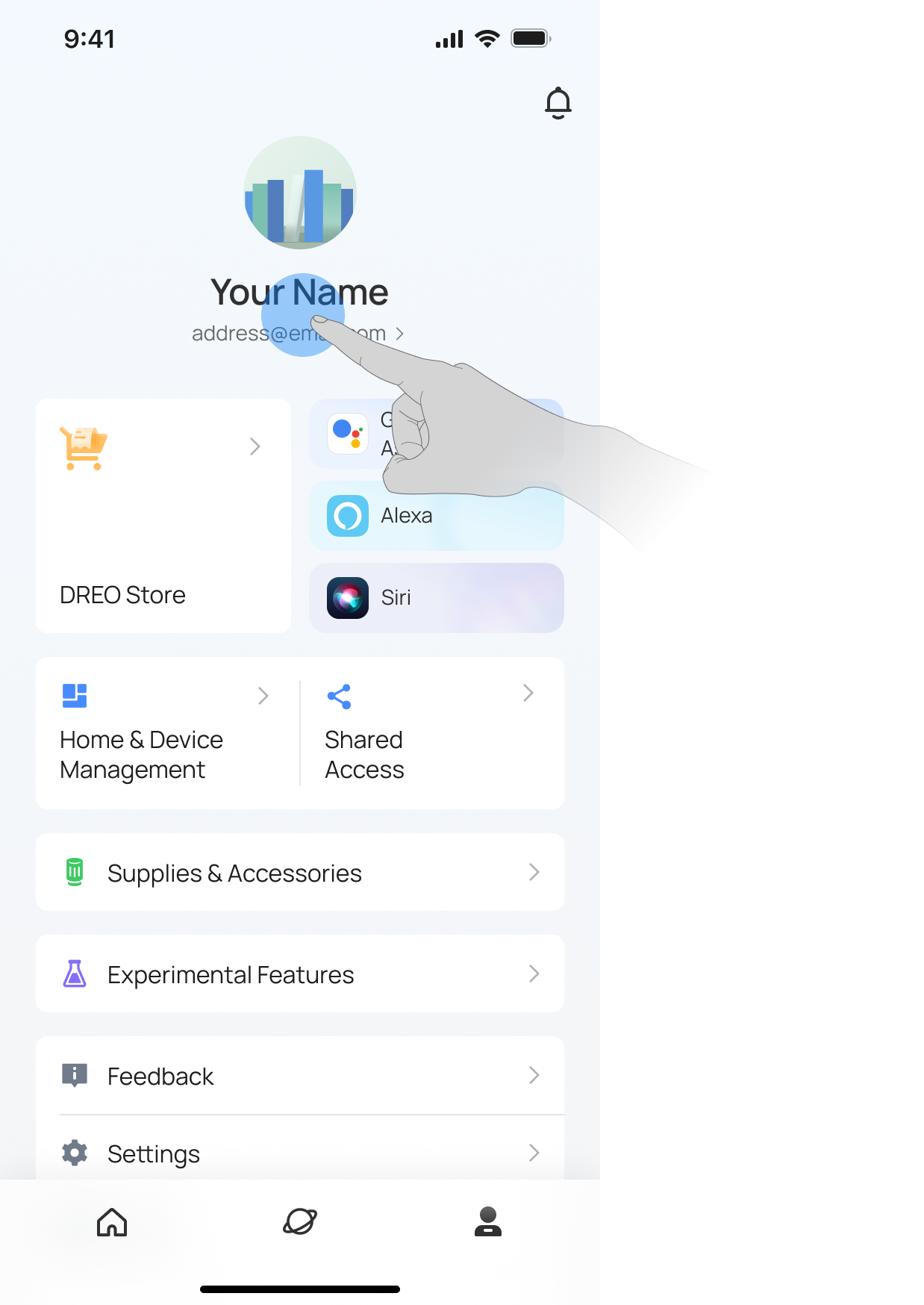
4. Tap Account Security.
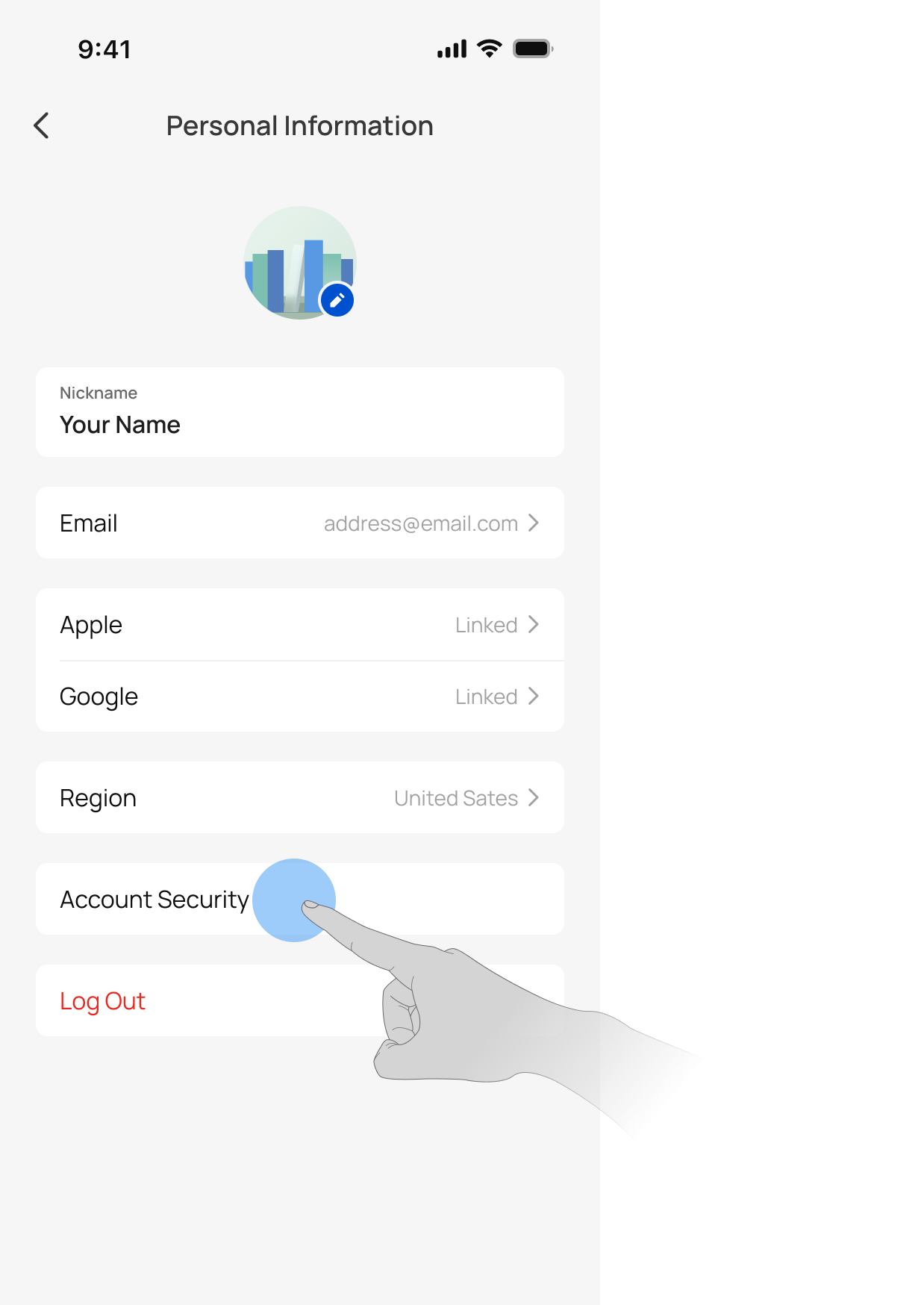
5. Tap Change Login Password.
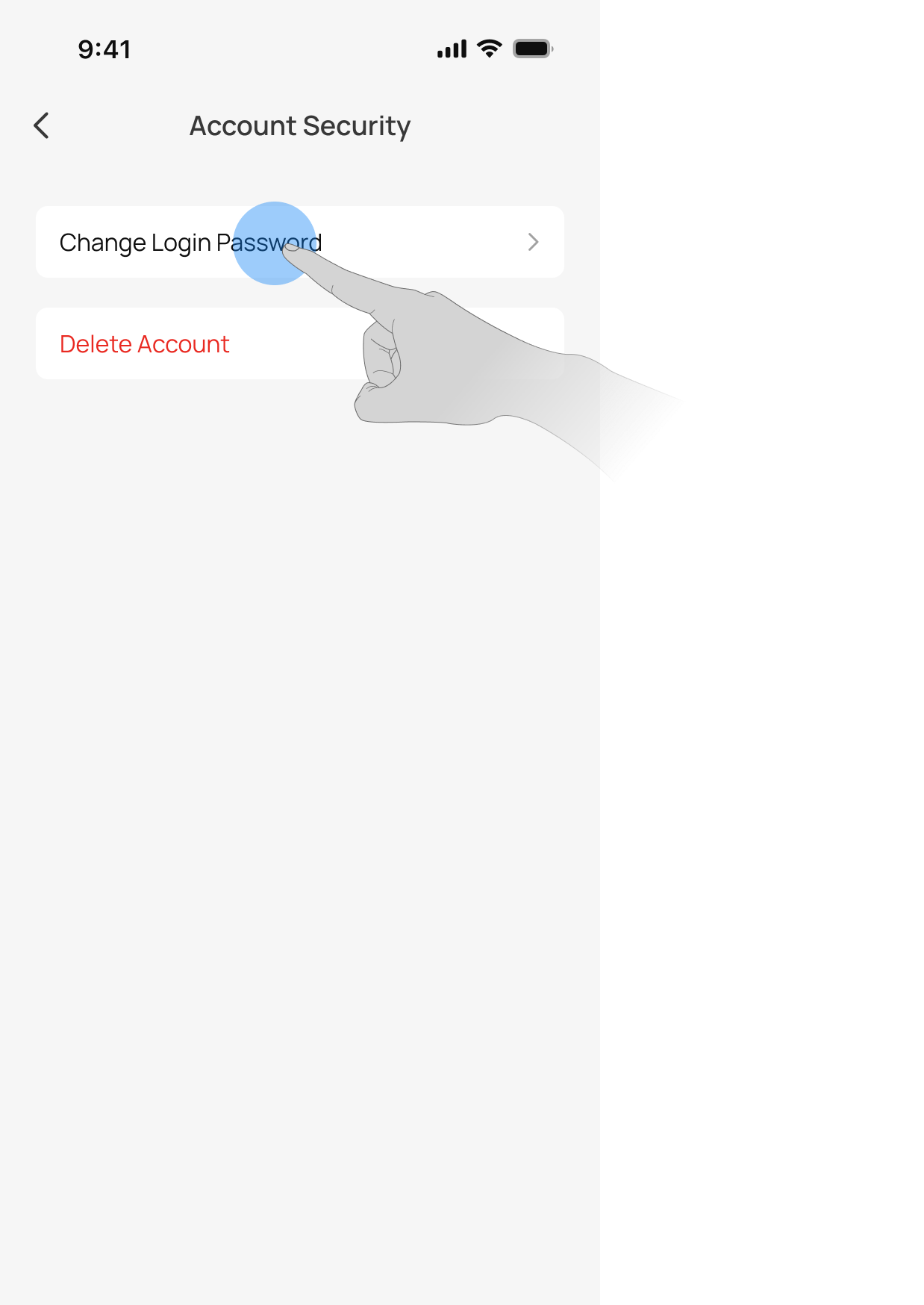
6. Enter the email address associated with your DREO account.
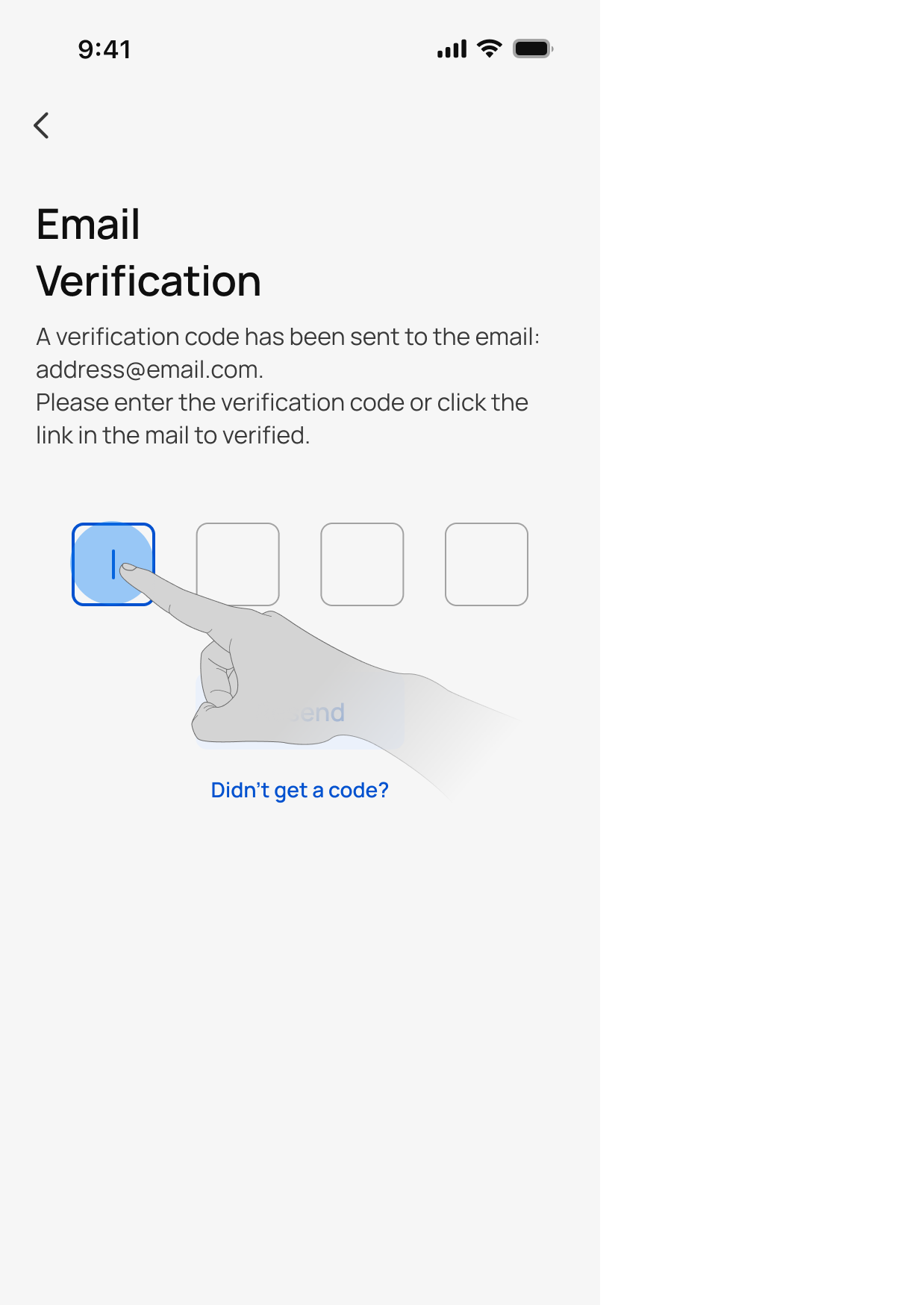
7. Check your email for the verification code from DREO.
8. Return to the DREO App and enter the verification code.
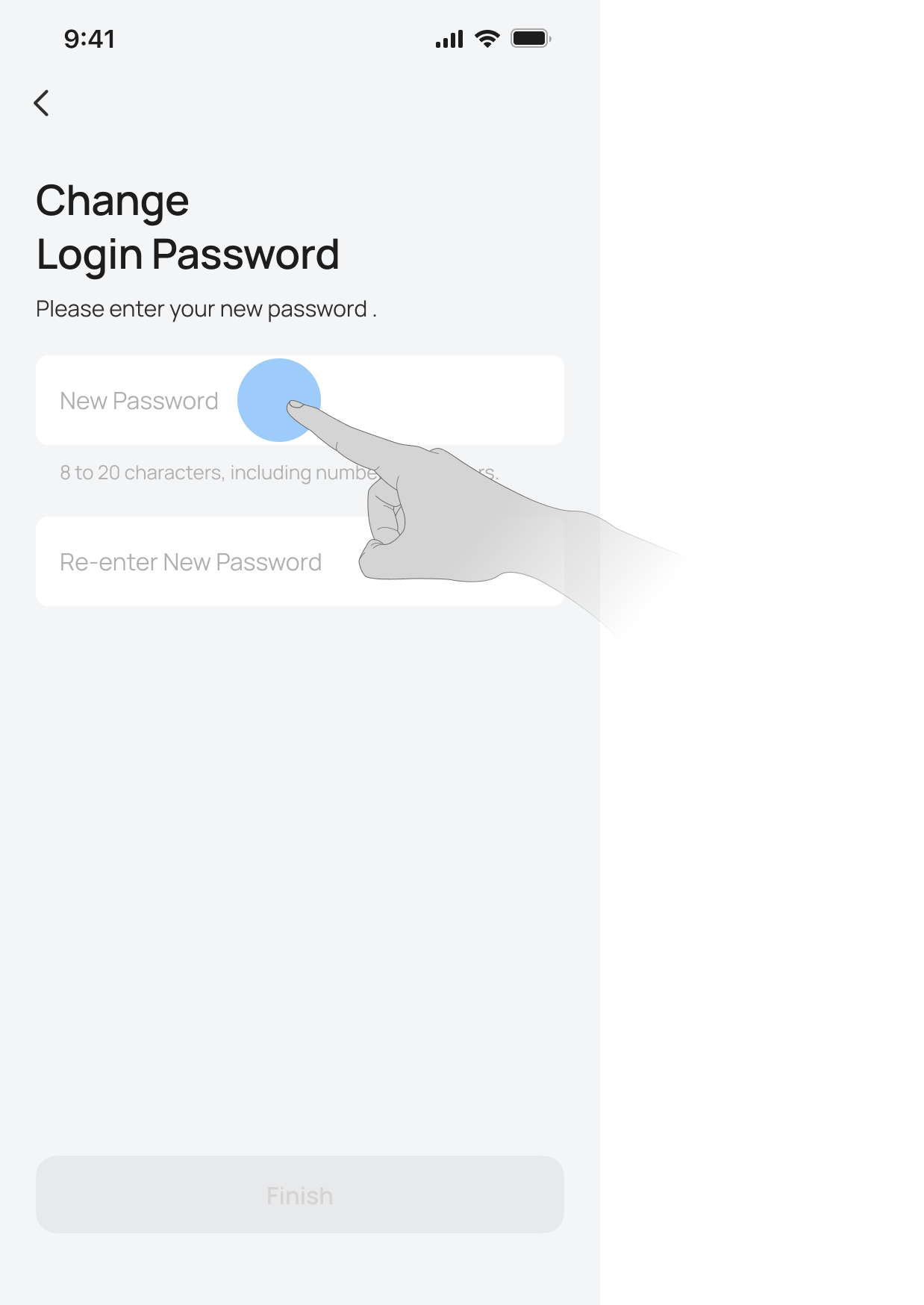
9. Enter the password you want to set.
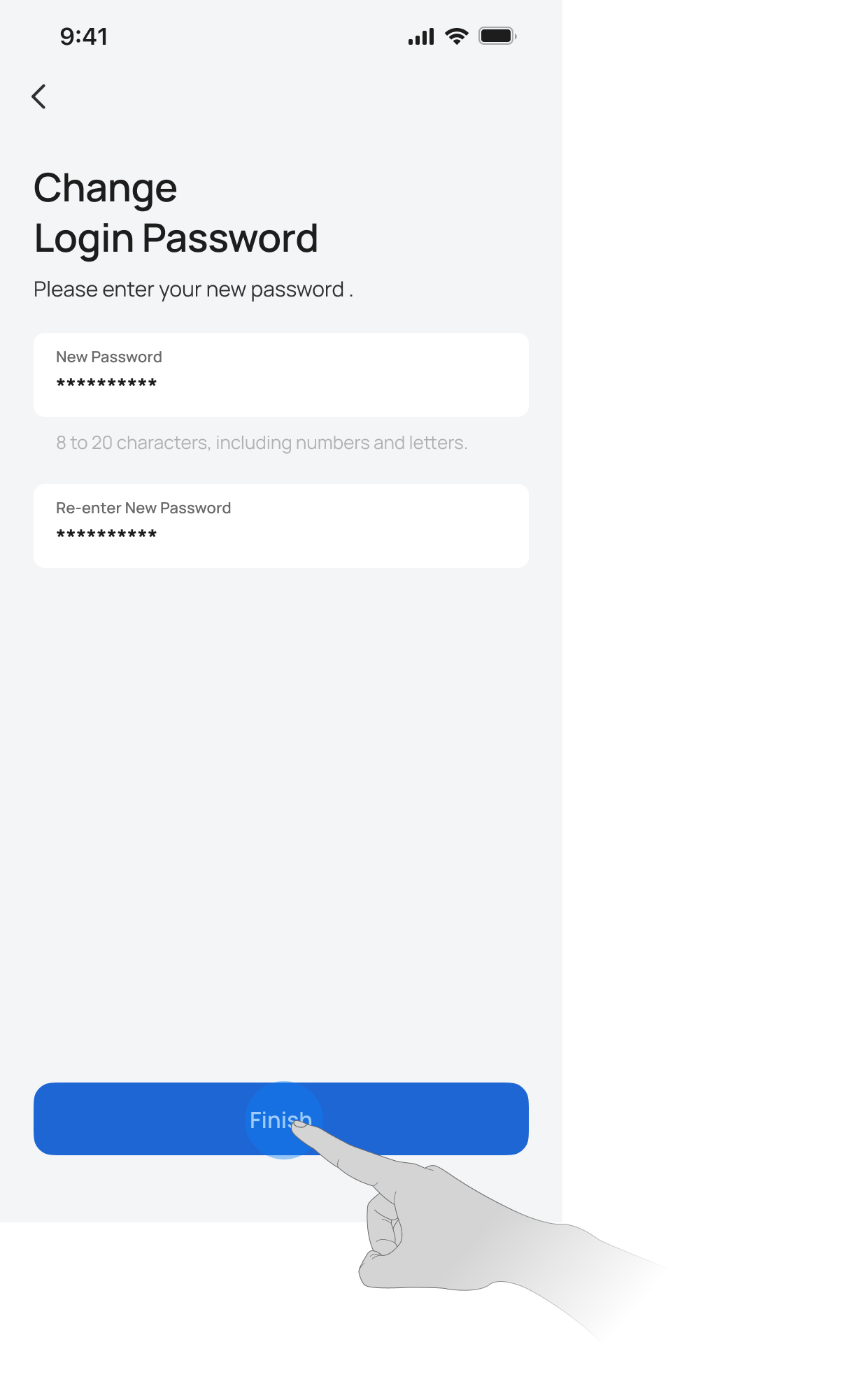
10. Tap Finish.
Notes
- Use your DREO account email to receive the verification code.
- If you use Sign in with Apple and Hide My Email, the verification code will be sent to the email address associated with your Apple ID. Make sure your email can still receive messages.
- If you don’t receive the code, check your spam folder, email forwarding settings, or try again later.
- After setting a password, you can still use your linked third-party account to sign in to the App.